Turn an Old iPad Into a Family Dashboard
Turn an old iPad into a family wall display with five free self-hosted dashboards. Get setup steps, kiosk mode tips, and fixes for common problems.

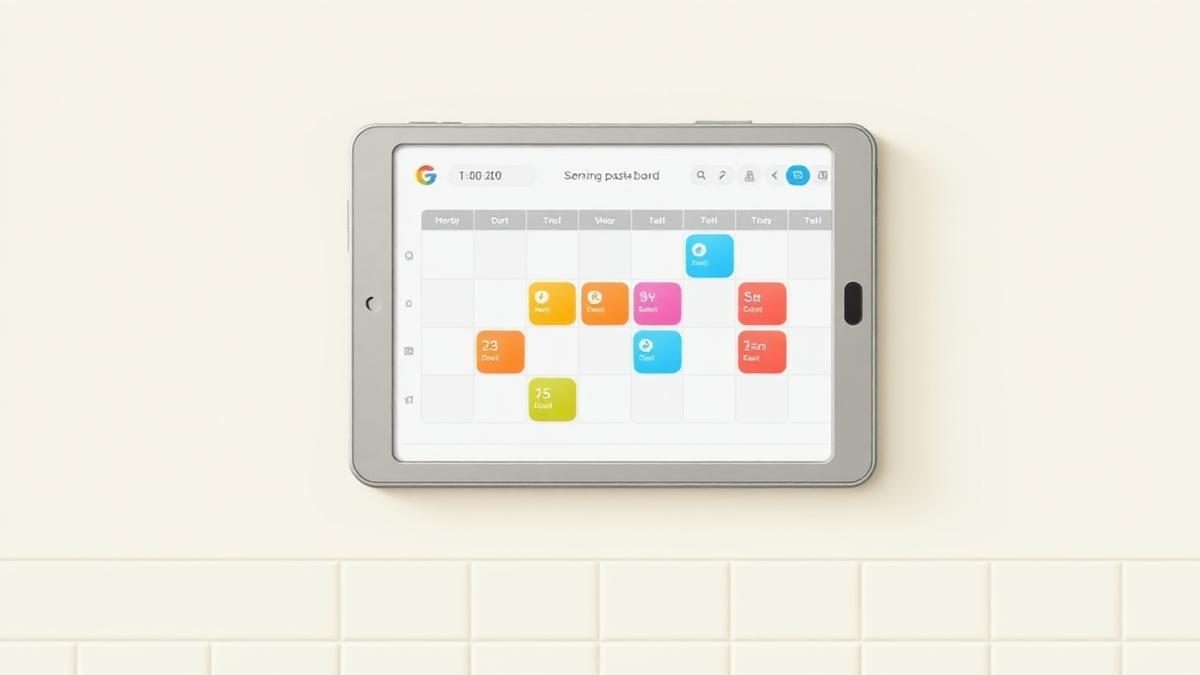
My old iPad sat in a drawer for a long time. The screen still looked good and the battery still worked, but no new app would run on it. I wanted to use it in the kitchen as a family board, so I started looking at the store-bought smart calendars. Most of them cost $300 or more, and some also charge a yearly fee.
In short: You can turn an old iPad or Android tablet into a family dashboard for free. The dashboard software runs on another computer in your home, and the tablet opens it in a browser. This guide covers five free dashboards, from the simplest to the most advanced, with setup steps, kiosk mode, and fixes for common problems.
Key takeaways
- Store-bought smart family calendars often cost $300 or more, and some add a yearly subscription.
- The iPad is only the screen. The software runs on another device in your home, such as an old laptop, a Raspberry Pi, a mini PC, or a NAS.
- Set your server to a fixed IP address in your router. A changing IP is the number one cause of a blank screen.
- Set Auto-Lock to Never and use Guided Access to keep the iPad on one app.
- The five options are DinkyDash, Family Planner Dashboard, FamilyHub, Beacon, and HomeHub.
What do you need before you start?
You need an old iPad or tablet, a home server, a stand or wall mount, and a charging cable. You also need Docker and Git. You do not need any coding skills, because every command in this guide can be copied and pasted.
Here is the hardware list:
- An old iPad or tablet. Any device that runs a browser will work. Even an iPad 2 works with some of these options.
- A home server. Choose one of these:
- An old computer or laptop that stays on. This is the simplest choice to start with.
- A Raspberry Pi, version 3 or newer.
- A mini PC or NAS, if you already have one.
- A stand or wall mount for the iPad, plus a charging cable that reaches the spot you picked. The iPad will stay plugged in all the time.
Here is the software list:
Docker. Most of the projects below install through Docker. If you do not have it, download Docker Desktop for Windows or Mac. On Linux, run this command:
curl -fsSL https://get.docker.com | shGit. You need Git to download the repos. Use the command for your system:
sudo apt install git      # Linux
brew install git          # Mac
Knowledge. You need none. Every command in this guide is copy and paste. If something breaks, there is a debugging section, and you can always paste the error into Claude. I cover that in the bonus section at the end.
How do you find the server's address?
Run one of these commands on the server. You will need this address for every install.
hostname -I              # Linux / Raspberry Pi
ipconfig                 # Windows (look for IPv4 Address)
ipconfig getifaddr en0   # Mac
You will get something like 192.168.1.42. That is the address your iPad will open in its browser.
Important tip: In your home router, set the server to a fixed IP address. Look for DHCP Reservation or Static Lease. Without it, the router may change the server's address one day, and your iPad will show a blank screen. This is problem number one in all of these systems.
How do you set up the iPad in kiosk mode?
Kiosk mode keeps the iPad on the dashboard and stops it from leaving the app. The goal is simple: the iPad turns on, shows the dashboard, and stays there, even when a four-year-old taps everything.
Keep the screen always on
Go to Settings, then Display & Brightness, then Auto-Lock, and choose Never.
The iPad stays plugged in all the time, so this is fine. To protect the battery over time, you can plug it into a smart plug that cuts power at night.
Lock the iPad to one app with Guided Access
- Go to Settings, then Accessibility, then Guided Access. Turn it on and set a passcode.
- Open Safari with your dashboard.
- Press the Home button three times, or the side button.
- Tap Start. From now on, you cannot leave the app without the passcode.
Save the dashboard to the home screen
In Safari, tap the Share button and choose Add to Home Screen. This creates an app icon that opens without the address bar. It looks like a real product.
What if the iPad is very old?
If Safari is too old to load the interface, you have two options.
- Install DinkyDash. It was built on purpose with simple HTML, so it runs on old browsers.
- Use a dedicated kiosk app from the App Store, such as Kiosker, if the store still supports your device.
How do you refresh the screen automatically?
Most dashboards refresh on their own. If yours does not, add a refresh parameter to the address if the repo supports it. You can also use a kiosk app with built-in auto-refresh.
What is DinkyDash?
DinkyDash is a minimal family dashboard built to run on a Raspberry Pi and display on any old screen, including old tablets. It shows whose turn it is to take out the trash, countdowns to birthdays and events, daily chores, and a daily fact or challenge.
The new version adds an AI layer. Every morning, a new dashboard is built with Claude, which writes the daily content. That includes the fact of the day, a challenge for kids, and rewritten chore lists. The screen in your kitchen changes every morning.
It fits families with young kids, ages 3 to 10. It also fits anyone who wants something simple that runs on any device, or who wants the AI angle.
Here is the repo: github.com/harperreed/dinkydash
How do you install DinkyDash?
Clone the repo, create a Python virtual environment, install the requirements, and run app.py. Then open the server address with port 5000 on your iPad.
# 1. Clone the repo
git clone https://github.com/harperreed/dinkydash.git
cd dinkydash

# 2. Virtual environment and dependencies (Python project)
python3 -m venv venv
source venv/bin/activate
pip install -r requirements.txt

# 3. Set up your family: edit the config file
nano config.yaml
In the config file, you set the family member names and an emoji for each person, rotating chores, and countdowns for birthdays, vacations, and events. The exact layout follows the repo's structure.
# 4. Run it
python app.py
On the iPad, open http://192.168.1.42:5000. The exact port appears in the run output.
To keep it running all the time, even after a server restart, wrap it in a service or run it inside tmux or screen. On a Raspberry Pi, the cleanest option is a systemd service:
sudo nano /etc/systemd/system/dinkydash.service
# Paste a short unit file that runs app.py, then:
sudo systemctl enable --now dinkydash
Connecting the AI: Follow the repo's instructions. You set an environment variable with your API key, such as ANTHROPIC_API_KEY, and the dashboard refreshes each morning. The cost is a few cents a month, since it is one call per day.
How do you debug DinkyDash?
| Problem | Fix |
|---|---|
| ModuleNotFoundError | You forgot to run source venv/bin/activate before running the app. |
| The page does not load on the iPad | Check that the server and iPad are on the same WiFi. Check the firewall with sudo ufw allow 5000. |
| The config is not picked up | This is a YAML error. Use spaces, not tabs. Paste the file into Claude and it will fix it. |
| The AI does not generate content | Check that your key is set: echo $ANTHROPIC_API_KEY |
What are good DinkyDash use cases?
- "Whose turn is it?" This ends the fights over trash, the dishwasher, and the dog. The screen decides.
- A countdown to a trip. The kids see every morning how many days are left.
- A daily challenge from Claude. For example, "Today everyone says one nice word to each other." It is educational content that refreshes on its own.
What is Family Planner Dashboard?
Family Planner Dashboard is the repo built most directly for this use case. Its official description is "Self-hosted family command center for a spare iPad." It uses Python and Flask, works offline first, and needs no cloud and no subscriptions. You can find it on GitHub under the topic family-organizer.
It includes these features:
- Voice commands. Say "add milk to the shopping list" without touching the screen.
- Document scanning with OCR. Take a photo of the school notice. The system reads it and adds the dates to the calendar.
- Weekly meal planning.
- Chore tracking for kids.
- Seasonal themes. The screen changes for holidays and seasons.
- Local AI. The processing happens in your home.
It fits busy families with many activities and many school notices. It is also useful for parents who want paid-product features without paying for them.
Here is the repo: family-organizer topic on GitHub
How do you install Family Planner Dashboard?
Find the repo under the family-organizer topic on GitHub, clone it, install the requirements, and run app.py. The install works the same way as DinkyDash.
# 1. Find the repo under the family-organizer topic on GitHub and clone it
git clone <repo-address>
cd <repo-folder>

# 2. Flask project, same steps as DinkyDash
python3 -m venv venv
source venv/bin/activate
pip install -r requirements.txt

# 3. Config: follow the README
#    Family member names, calendars, OCR language

# 4. Run it
python app.py
On the iPad, open the address and port shown in the run output.
A note on OCR: The OCR part usually depends on Tesseract. If that install fails, run:
sudo apt install tesseract-ocr tesseract-ocr-heb # includes the language packA note on voice: Voice recognition in the browser needs microphone permission. Safari will ask you the first time. On very old iPads, voice may not be supported. The other features will still work.
How do you debug Family Planner Dashboard?
| Problem | Fix |
|---|---|
| OCR returns garbled text | Make sure the Tesseract language pack is installed and set in the config. |
| The microphone does not work | Safari needs HTTPS or localhost for microphone access. Check the README for the recommended fix. |
| The scan does not find dates | Take the photo straight on, with good light. A wrinkled page gives poor results. |
| The app is slow on an old Pi | Local AI is heavy for a Pi 3. Move the AI part to a stronger computer, or turn it off in the config. |
What are good Family Planner use cases?
- The school notice. Every parent's daily chore. Take a photo, and the dates appear on the calendar. That's it.
- A shopping list by voice while cooking. Your hands are in the dough, and your mouth adds "flour" to the list.
- "What's for dinner?" Meal planning answers the question asked most often in a house.
What is FamilyHub?
FamilyHub is a self-hosted family organizer built by joe-bor to replace expensive commercial products like Skylight Calendar. It is built with React 19, designed for an always-on kitchen tablet, and feels native on a phone too. The developer runs it for his own family on a $6-a-month server.
It includes these features:
- A full calendar. Daily, weekly, and monthly views, a color for each family member, and repeating and multi-day events.
- Chores with tracking.
- Meal planning, recipes, and shopping lists, all connected.
- A calm home screen that shows what is next, how many chores are left, and what is for dinner.
- One family login. You do not manage an account for each kid.
The license is AGPL. It requires that the code stay open. For home use, it is completely free.
It fits anyone who wants an experience closest to a store-bought product. Of the five, it is the most polished.
Here is the repo: github.com/joe-bor/FamilyHub
How do you install FamilyHub?
Clone the repo and follow the README. Most setups use Docker Compose. If there is a docker-compose.yml file, run docker compose up -d.
# 1. Clone
git clone https://github.com/joe-bor/FamilyHub.git
cd FamilyHub

# 2. Follow the README. This is a modern web project:
#    usually docker compose up -d
#    or install Node: npm install && npm run build && npm start
If the repo has a docker-compose.yml file, this is the path:
docker compose up -dOn the iPad, open http://192.168.1.42:3000, or the port set in the compose file.
First-time setup: Create the family, add each family member with a color, and enter the fixed events, such as classes and school.
How do you debug FamilyHub?
| Problem | Fix |
|---|---|
| "port is already allocated" | The port is taken. Change the left side in docker-compose.yml to "3001:3000". |
| The container stops right away | Run docker compose logs -f. In 90% of cases, a missing environment variable in .env is the cause. |
| The Node build fails | Check your Node version with node -v against the README. Upgrade with nvm. |
| Updates do not sync between screens | Refresh. If it continues, check that all devices talk to the same server. |
What are good FamilyHub use cases?
- The home command center. "Check the calendar" becomes the answer to every question.
- Dinner, then recipe, then shopping list. In one flow, you pick a recipe and the ingredients go into the shopping list.
- On your phone too. The same calendar sits in the parents' pockets, with no extra app.
What is Beacon?
Beacon is a free, open-source add-on for Home Assistant, built for a tablet mounted on the wall. If you do not use Home Assistant, it can also run as a standalone Docker container.
Its key feature is paid chores. Each chore has a dollar value. It tracks streaks, and a weekly leaderboard shows who earned the most. Allowance becomes a game, and the room suddenly gets clean.
It also includes these features:
- A weekly calendar with a color for each family member and drag-to-reschedule events.
- Shopping lists, including sync with AnyList or the Home Assistant shopping list.
- Control of any Home Assistant media player, so you can play music in the kitchen from the same screen.
- Photo frame mode. It runs a slideshow when no one is using the screen.
- **Quick setup.
Questions people ask
How do you turn an old iPad into a smart family calendar?
Run a family dashboard on a home computer, Raspberry Pi, or NAS, then open it in the iPad's browser. The iPad is only the screen, so even an older device with Safari can show a modern interface. You can lock it to one app with Guided Access and add the dashboard to the home screen.
Which free dashboards can replace Skylight?
The article covers five options: DinkyDash, Family Planner Dashboard, FamilyHub, Beacon, and HomeHub. FamilyHub is the most polished full replacement for Skylight. HomeHub is the easiest to start with because it needs no login and one config file.
What is the easiest dashboard to install?
HomeHub is the easiest. You clone the repo from GitHub, run docker compose up -d, and open the server address on port 3000 on your iPad. Changes go in config.yml, followed by docker compose restart.
Do I need a Raspberry Pi to run these dashboards?
No. Any computer that stays on and can run Docker will work, including an old laptop, a mini PC, or a NAS. A Raspberry Pi 3 or newer works for most of the options, but heavy local AI like Family Planner's may run slowly on it.
Why does the iPad show a blank screen after it worked before?
The most common cause is that the router gave the server a new IP address. Set a fixed IP for the server with a DHCP Reservation or Static Lease, and turn off sleep on the server. Also check that the iPad is on the same WiFi network as the server.