Turn an Old PC into a Home Server and Local AI Agent
Turn an old PC into a home server with Ubuntu, Tailscale, Docker apps, free local AI with Ollama, and a personal AI agent you reach from your phone.

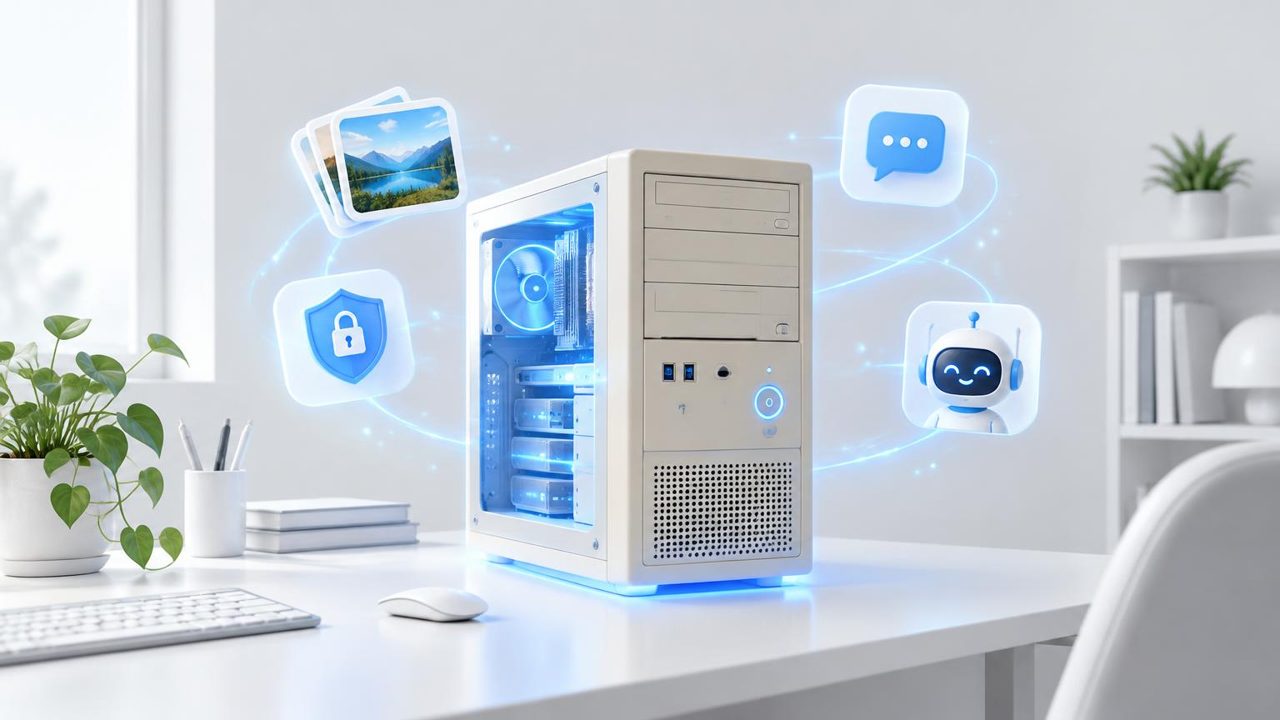
A computer that was headed for the trash can become your own private cloud. It can also run a free AI model at home and a personal agent that answers you on Telegram or WhatsApp, all day and night. This guide walks through the whole setup, from hardware to backups.
In short: An old computer with at least 4GB of RAM can run a home server with Ubuntu Server 26.04 LTS, Tailscale for remote access, and Docker apps that replace subscriptions. Ollama and Open WebUI add free local AI, and agents such as OpenClaw or Hermes Agent can run on top. The server stays reachable from your phone anywhere without opening ports on your router.
Key takeaways
- Ubuntu Server 26.04 LTS is the recommended base system, and LTS releases receive security updates for years.
- Tailscale gives you private, encrypted access from your phone and laptop, and the free plan is enough for home use.
- A 30 watt old PC uses about 263 kWh per year, so you multiply that by your electricity rate to get the yearly cost.
- Ollama can run free local models, and Open WebUI gives you a ChatGPT-style chat interface on your phone.
- Never open ports on your router. Access from outside the home happens only through Tailscale.
- Back up your data on a schedule and test that you can restore it. A backup you have not tested is not a backup.
What can an old PC run?
An old PC with 4GB of RAM can run a few light apps and a very small AI model. The more RAM you have, the more apps and bigger models you can run. The table below shows what each level supports.
| Your computer | Home server | Local AI | Agent |
|---|---|---|---|
| 4GB RAM, old CPU | Yes, a few light apps | Tiny model only (llama3.2:1b) | PicoClaw or ZeroClaw with a cloud model |
| 8GB RAM, no graphics card | Yes, most apps | gemma4:e2b or llama3.2:3b | Any agent, with the brain in the cloud |
| 16GB RAM | Yes, everything including Immich | gemma4:e4b, 7B to 8B models | Any agent, with a local model for the routine work |
| 32GB RAM or more, or an NVIDIA card with 12GB or more | Yes, everything | Medium models, gemma4:12b and up | You can try an agent on a local model |
| 24GB VRAM or more | Yes | gemma4:31b and heavier models | Full local agent, no cloud |
Upgrades that are worth it
- SSD instead of a regular hard drive (HDD): This is the upgrade with the biggest impact. A 256GB to 512GB SSD is a low-cost upgrade. You can keep the old drive as a second disk for backups and movies.
- More RAM: This is the second upgrade. Check how many slots the board has and the maximum RAM it supports. Search online for your computer model along with "max RAM."
- Ethernet cable instead of WiFi: A server needs a stable connection.
- External drive or a second drive for backups: This is required if you store family photos.
Laptops make good servers
An old laptop is usually the most power-efficient choice. It also has a built-in battery that carries it through short power outages.
How much electricity does a home server use?
An old PC at rest uses about 15 to 60 watts. To estimate the yearly energy use, multiply watts by 24 by 365, then divide by 1000. The result is kilowatt-hours (kWh) per year. A 30 watt PC uses about 263 kWh per year. Multiply that number by your current electricity rate to get the yearly cost. In most cases this is much less than the subscriptions the server replaces.
How do you install Ubuntu Server on an old PC?
Download Ubuntu Server 26.04 LTS, write it to a USB drive, and install it with SSH enabled. After the install, you can disconnect the monitor and keyboard and work from your regular computer over SSH.
- Download Ubuntu Server 26.04 LTS from ubuntu.com/download/server. If you prefer a graphical interface, you can use Ubuntu Desktop 26.04 LTS instead. LTS versions get security updates for years.
- Write the file to a USB drive with balenaEtcher or Rufus.
- For the first time, connect a monitor and keyboard. Enter the BIOS and set the computer to boot from the USB drive.
- During the install, choose to use the entire disk, and check Install OpenSSH server.
- When the install finishes, remove the USB drive and restart. From now on you can disconnect the monitor and keyboard and work over SSH.
Find the server's IP address:
ip aThen connect from your regular computer:
ssh your-user@192.168.1.50First update and basic tools
sudo apt update && sudo apt upgrade -y
sudo apt install -y curl git htop build-essential
Keep the server from sleeping
sudo systemctl mask sleep.target suspend.target hibernate.target hybrid-sleep.targetLaptop: keep it running with the lid closed
Open the logind config file:
sudo nano /etc/systemd/logind.confChange the lines to:
HandleLidSwitch=ignore
HandleLidSwitchExternalPower=ignore
Then run:
sudo systemctl restart systemd-logindLaptop tip: If the manufacturer's settings let you limit charging to 60% or 80%, turn it on. A battery that sits at 100% all the time swells.
Start automatically after a power outage
Enter the BIOS, look for Restore on AC Power Loss or After Power Failure, and set it to Power On.
Set a fixed IP address
Log in to your router's admin page and look for DHCP Reservation or Static Lease. Assign the server a fixed address. This way your apps always stay at the same address in your home.
Set the time zone
sudo timedatectl set-timezone Asia/JerusalemHow do you secure a home server?
Use SSH keys instead of passwords, turn on the firewall, enable automatic security updates, and never open ports on your router. Skip none of these steps.
Log in with a key instead of a password
On your regular computer:
ssh-keygen -t ed25519
ssh-copy-id your-user@192.168.1.50
Confirm that you can log in without a password. Only then turn off password login on the server:
sudo nano /etc/ssh/sshd_configSet these lines:
PasswordAuthentication no
PermitRootLogin no
Restart SSH:
sudo systemctl restart sshFirewall
sudo ufw allow OpenSSH
sudo ufw enable
Note: Ports that Docker publishes bypass ufw. That is one more reason not to open any port on your router. Reach everything from outside only through Tailscale.
Automatic security updates
sudo apt install -y unattended-upgrades
sudo dpkg-reconfigure -plow unattended-upgrades
Three rules you should never break
- Never open ports on your router. Access from outside is only through Tailscale.
- Use a strong, unique password for each app, and store them in Vaultwarden.
- Back up your data. A server without a backup is only a matter of time.
How do you access your home server from anywhere with Tailscale?
Install Tailscale on the server, your phone, and your laptop, then sign in with the same account. Tailscale creates a private, encrypted network between your devices, so they can see each other as if they were on the same local network. The free plan is enough for home use.
Install on the server
curl -fsSL https://tailscale.com/install.sh | sh
sudo tailscale up
A link will open. Sign in with Google, Microsoft, or GitHub.
Install on your phone and computer
Install the Tailscale app from the app store and sign in with the same account. In the dashboard at login.tailscale.com, you will see the server with an address that starts with 100.
Use names instead of numbers
In the Tailscale dashboard, open the DNS tab and turn on MagicDNS. Now you can reach the server by its name, for example:
ssh your-user@old-pcReal HTTPS for apps, without opening anything
Some apps, such as Vaultwarden and n8n, require HTTPS. In the dashboard, open the DNS tab, turn on HTTPS Certificates, and then run:
sudo tailscale serve --bg 3000An app running on port 3000 is now available at a secure address in the style of https://old-pc.your-tailnet.ts.net, and only your own devices can reach it.
SSH through Tailscale
sudo tailscale up --sshWith this, you can connect from any device on your tailnet without managing keys.
Which Docker dashboard should you use: CasaOS, Docker, or Portainer?
CasaOS is the simplest option, with a dashboard and app store. If you want full control, install Docker and manage it with Portainer. Almost every app in this guide runs in Docker, and each app runs in its own box, so deleting one leaves no mess behind.
Option A: CasaOS, the simplest
curl -fsSL https://get.casaos.io | sudo bashAt the end you get an address. Open it in your browser, create a user, and you have a clean dashboard with a one-click app store. CasaOS also installs Docker.
What to know: Core development of CasaOS slowed down a lot. The latest core release came out at the end of 2024, but the app store keeps getting updates. For home use it still works very well. If you want something that is developing more actively, look at ZimaOS (from the same company), Umbrel, or Runtipi.
Option B: Clean Docker with a management interface
If you want full control:
curl -fsSL https://get.docker.com | sh
sudo usermod -aG docker $USER
Log out and log back in, then check:
docker run hello-worldGraphical management with Portainer:
docker volume create portainer_data
docker run -d -p 9443:9443 --name portainer --restart=always \
  -v /var/run/docker.sock:/var/run/docker.sock \
  -v portainer_data:/data portainer/portainer-ce:lts
Open https://old-pc:9443. A lighter alternative is Dockge, which manages docker compose files.
A home dashboard with all your links
Homepage (github.com/gethomepage/homepage) gives you one home page with links and status for every app. It is also available in the CasaOS app store.
Which apps can replace subscriptions?
Each app below replaces a subscription or service. Each entry lists what it replaces, how to install it, and which port it uses. If you chose CasaOS, you can install most of them from the app store with one click and skip the commands.
Immich: photo backup (instead of Google Photos and iCloud)
Immich backs up photos automatically from every phone in the house. It includes face recognition, a map view, and smart photo search. I recommend 6GB of RAM or more.
mkdir ~/immich && cd ~/immich
wget -O docker-compose.yml https://github.com/immich-app/immich/releases/latest/download/docker-compose.yml
wget -O .env https://github.com/immich-app/immich/releases/latest/download/example.env
nano .env
docker compose up -d
In the .env file, change UPLOAD_LOCATION to a folder on your large disk, and change the database password. The port is 2283. Install the Immich app on your phone, enter the server's address, and turn on backup.
Nextcloud: a private drive (instead of Google Drive and Dropbox)
Nextcloud handles files, calendar, contacts, and document editing. The easiest way is Nextcloud from the CasaOS app store, or Nextcloud All-in-One following the instructions at github.com/nextcloud/all-in-one.
An even simpler option is Syncthing, which syncs folders directly between computers and phones with no cloud at all:
sudo apt install -y syncthingJellyfin: a private Netflix
Your movies and shows are available on any TV, phone, or computer, with posters and summaries.
docker run -d --name jellyfin --restart unless-stopped \
  -p 8096:8096 \
  -v jellyfin-config:/config -v jellyfin-cache:/cache \
  -v /path/to/media:/media \
  jellyfin/jellyfin
The port is 8096. There are apps for Android TV, Apple TV, Samsung, and LG.
Pi-hole: ad blocking for the whole home
Pi-hole blocks ads on every device on the network, including smart TVs, without installing anything on them.
On Ubuntu, you first need to free port 53:
sudo sed -i 's/#DNSStubListener=yes/DNSStubListener=no/' /etc/systemd/resolved.conf
sudo systemctl restart systemd-resolved
Create a docker-compose.yml file in the ~/pihole folder:
services:
  pihole:
    image: pihole/pihole:latest
    container_name: pihole
    ports:
      - "53:53/tcp"
      - "53:53/udp"
      - "8053:80/tcp"
    environment:
      TZ: Asia/Jerusalem
      FTLCONF_webser
Questions people ask
Which old computers are good for a home server?
Almost any computer with 4GB of RAM or more can run light apps. With 8GB you can run most of the apps and a small AI model, and 16GB or more fits Immich and 7B to 8B models. An SSD is the upgrade with the biggest impact.
Which operating system should I use?
Ubuntu Server 26.04 LTS is free, stable, and gets security updates for years. If you prefer a graphical interface, you can install Ubuntu Desktop 26.04 LTS instead.
How do I reach my server from outside the house without opening ports?
Install Tailscale on the server, your phone, and your laptop. Tailscale creates a private, encrypted network between your devices, and tailscale serve provides HTTPS for apps without exposing them to the internet.
Which subscriptions can a home server replace?
Immich can replace Google Photos, Nextcloud can replace Google Drive or Dropbox, and Jellyfin works as a private Netflix-style media server. Pi-hole blocks ads across the home, Vaultwarden manages passwords, Paperless-ngx handles receipts and documents, Home Assistant runs a smart home, and n8n handles automations.
How much electricity does an old PC use as a server?
An old PC at rest uses about 15 to 60 watts. A 30 watt PC uses about 263 kWh per year, and you multiply that by your electricity rate to get the yearly cost. This is usually much less than the subscriptions it replaces.