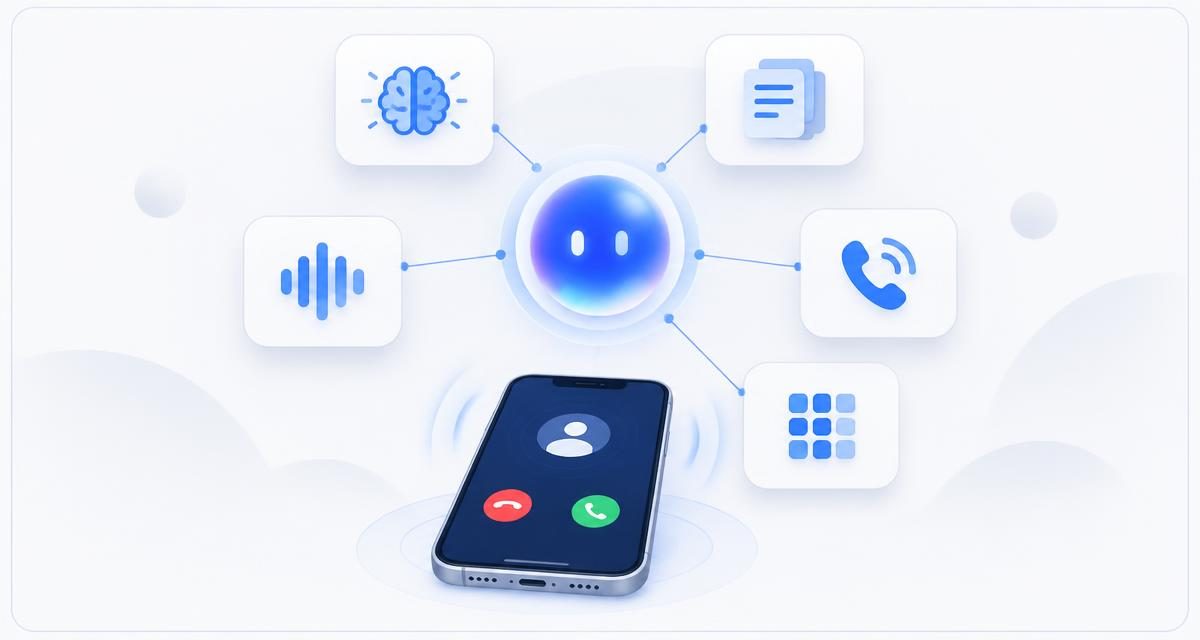
T3 Code Guide: Install, Connect Claude Code and Codex
Learn how to install T3 Code, connect Claude Code and Codex, run three coding agents in parallel with git worktrees, and approve them from your phone.

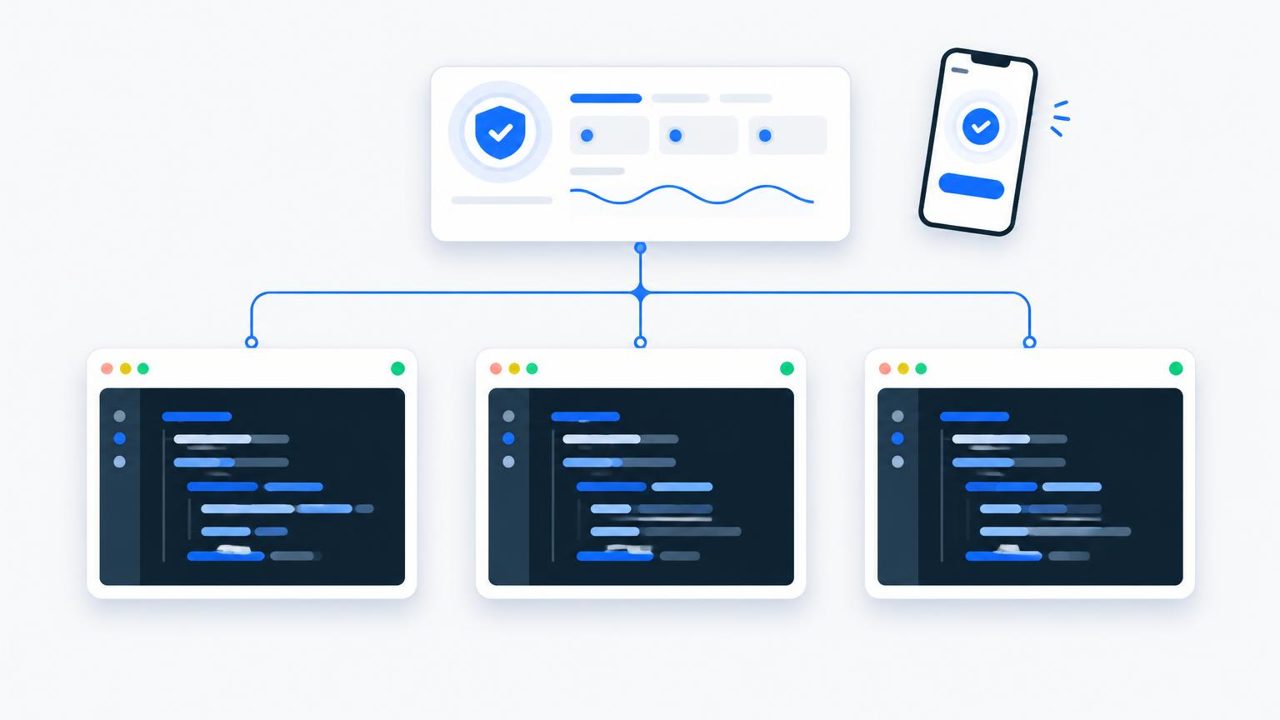
Say you have a bug to fix, a small feature to add, and a set of tests to write. With one agent in one terminal window, you wait for each task to finish before you start the next. T3 Code lets you run several coding agents at once, each in its own folder, and keep track of all of them in one place.
In short: T3 Code is a free, open source desktop and web app that runs several coding agents side by side, such as Claude Code and Codex, each in its own git worktree. It does not sell tokens, so you work with the subscriptions you already have. Install the desktop app, or run npx t3@latest without installing anything, then add a project and open a thread for each task.
Key takeaways
- T3 Code is free and open source under the MIT license, and you only pay for your existing provider subscriptions.
- It works with Claude Code, Codex (OpenAI), Cursor CLI, OpenCode, and Grok Build.
- Each thread gets its own git worktree, so three agents run in three folders with no conflicts.
- You need Node.js 22.16 or newer, and 24 is recommended.
- The diff viewer shows every changed file before anything is saved to git, and the PR button handles commit, push, and the pull request.
- Your phone can control agents running on your computer through the T3 Code mobile app, with Tailscale recommended for the connection.
What is T3 Code?
T3 Code is a control surface for coding agents. The team calls it an "agent harness control surface." It is not an AI model, and it does not sell you tokens. It is an interface that sits on top of the tools you already have.
Tools it works with:
- Claude Code
- Codex (OpenAI)
- Cursor CLI
- OpenCode
- Grok Build
If a tool is installed and connected on your computer, T3 Code can control it.
Here is what it adds that the terminal does not give you:
| Problem in the terminal | What T3 Code does |
|---|---|
| One agent, one window, and you wait | Several threads at once, each in its own folder (git worktree) |
| You cannot see what changed until you run git diff | Built-in diff viewer, before the commit |
| Manual PR: commit, push, title, description | One button: commit, push, and a Pull Request with a ready title and description |
| You have to sit in front of the computer | Web, desktop, and mobile apps (iOS and Android) that connect to your own server |
| Locked to one provider | Switch the model or provider for each thread separately |
Who built it: Theo (t3.gg) and the Ping team. License: MIT. The code is fully open source, and you can fork it. Price: 0. You only pay for the subscriptions you already have.
One thing to keep in mind: the team says in the README that the project is very early and to "expect bugs." It works, and it is good, but it is not a mature product. Plan accordingly.
What do you need before you start?
You need Node.js 22.16 or newer, git, and at least one provider installed and logged in. The GitHub CLI is optional, but the PR button will not work without it.
- [ ] Node.js 22.16 or newer (24 recommended). Check with:
node --version- [ ] git installed, and a project that is a git repository. Check with:
git --version- [ ] At least one provider installed and logged in (Claude Code or Codex, see the next section).
- [ ] GitHub CLI (gh) logged in. This is optional, but without it the PR button will not work. Check with:
gh auth statusNo Node yet? The simplest option is the LTS version at https://nodejs.org.
On a Mac, you can also install Node, git, and gh with Homebrew, one command each.
How do you install and connect Claude Code and Codex?
T3 Code does not handle sign-in on its own. It uses the login that already exists in each tool, so you install and log in from the terminal first, then open T3 Code.
Claude Code (Anthropic)
npm install -g @anthropic-ai/claude-code
claude auth login
A browser window opens. Sign in with a Claude account (Pro or Max) or an API key. To check the install:
claude --versionDon't have a paid subscription?
Codex (OpenAI)
npm install -g @openai/codex
codex login
Sign in with a ChatGPT account (Plus or Pro) or an API key.
Cursor CLI (optional)
# Install following the instructions at cursor.com/cli, then:
cursor-agent login
OpenCode (optional, free)
npm install -g opencode-ai
opencode auth login
Grok Build (optional)
Install following the instructions at x.ai/cli, then run:
grok loginMy advice for starting out: use Claude Code and Codex. Both are strong, and they have different styles. Claude tends to plan and explain, while Codex tends to act quickly. That is what you want when you run agents in parallel.
How do you install T3 Code?
There are two ways. Use npx to try it, and use the desktop app for everyday work.
Option A: No install (fastest way to try it)
npx t3@latestThis runs the T3 Code server on your computer and opens the web app in your browser. It is a good way to spend ten minutes and decide if you like it.
Option B: Desktop app (recommended for regular use)
On macOS:
brew install --cask t3-codeOn Windows:
winget install T3Tools.T3CodeOn Arch Linux:
yay -S t3code-binOn any other system, download it manually from GitHub Releases: https://github.com/pingdotgg/t3code/releases
Why use the desktop app instead of npx? The desktop app includes settings, connection management, Tailscale, and SSH. You need those for mobile access later. npx is good for a test, not for daily work.
How do you add your first project?
Open T3 Code, click Add project in the left sidebar, and paste the full path to a git folder. Then click the project in the list.
- Open T3 Code.
- In the left sidebar, click Add project.
- Paste the absolute path to a git folder. Tip: inside the project in your terminal, run
pwdand copy the result. - The project appears in the list. Click it.
The interface has three parts:
- Left: your list of projects
- Middle: threads (each thread is one task)
- Right: the chat with the agent, including the prompt, the plan, real-time tool calls, and replies
How do you run three agents in parallel?
Give each task its own thread, and each thread gets its own git worktree. A git worktree lets the same repository be open in several folders at once, each on a different branch. When you open a new thread and select a worktree, the agent gets its own clean copy of the project on its own branch. Three agents mean three folders and no collisions.
Exercise: 3 tasks, 3 agents, 5 minutes
Thread 1: bug fix (Claude Code, Plan mode, Supervised)
Fix the null pointer error in the checkout flow when the cart is empty.
Investigate first, then show me a plan before changing anything.
Thread 2: new feature (Codex, Chat mode, Full access)
Add a "Copy to clipboard" button next to every code block in the docs page.
Use the existing button component. Add a small toast on success.
Thread 3: tests (Claude Code, Chat mode, Full access)
Write unit tests for utils/dateFormatter.ts. Cover timezone edge cases
and invalid input. Use the existing test setup in the repo.
Before each thread, you make three choices in the right panel:
- Model / Provider: which agent and which model.
- Chat mode vs. Plan mode:
- Chat: the agent starts working right away. Good for quick questions and clear tasks.
- Plan: the agent scans the code first, shows a step-by-step plan, and writes only after you approve. Required for large tasks or refactors.
- Supervised vs. Full access:
- Supervised: every action (writing a file, running a command) needs your approval.
- Full access: the agent reads and writes without asking.
Which mode should you choose for each task?
Use Plan with Supervised for unclear bugs, refactors, or anything touching critical logic. Use Chat with Full access for small, well-defined features, tests, docs, or code that does not run in production. Anything that touches the database, migrations, or secrets should use Plan and Supervised, every time.
| Task type | Mode | Access |
|---|---|---|
| Unclear bug, refactor, or changes to critical logic | Plan | Supervised |
| Small, well-defined feature | Chat | Full access |
| Tests, docs, or code that does not run in production | Chat | Full access |
| Anything touching DB, migrations, or secrets | Plan | Supervised, always |
Full access inside a worktree is fairly safe. If the agent breaks something, it happens on a separate branch. But shell commands such as deleting files, npm publish, or git push --force do not know what a worktree is. For those, use Supervised.
How do you review the diff and open a pull request?
When an agent finishes, check the diff before anything is saved to git, then click the PR button to commit, push, and open a Pull Request with an automatically generated title and description. You are the reviewer at this step.
- Diff viewer: in the thread panel, you see every changed file, line by line, before anything is saved to git.
- Not happy with the result? Tell the agent what to fix in the same thread. It keeps working on the same branch.
- Happy with the result? Click the PR button. T3 Code commits, pushes, and opens a Pull Request on GitHub with an automatically generated title and description.
T3 Code supports draft PRs, stacked PRs, and updating an existing PR.
My recommendation: do not merge an agent's PR without reading the diff, even if the tests pass. Agents are good, but they sometimes invent APIs that do not exist, or they "fix" a test instead of the code.
How do you control agents from your phone?
Use the T3 Code mobile app and connect it through Tailscale. The agents run on your computer, and the phone only controls them, so the computer must be on and T3 Code must be running.
Recommended: Tailscale
Tailscale creates a private network between your devices (free for personal use). The T3 team recommends it, and it is the safest option.
- Install Tailscale on your computer and your phone, and sign in with the same account. Get it at https://tailscale.com
- In T3 Code Desktop, go to Settings → Connections.
- Under Manage Local Backend, turn on Network access. The app restarts.
- In the endpoint list, you will see your Tailscale address (100.x.y.z or a MagicDNS name). Select it as the default.
- Click Create Link to get a QR code.
- Install the T3 Code app from the App Store or Google Play, and scan the QR code. That's it.
Alternative: home network only (LAN)
Follow the same steps, but select the LAN endpoint (192.168.x.y). This only works when your phone and computer are on the same Wi-Fi.
Advanced alternative: headless server
If T3 runs on a remote server (a VPS or an office computer), start it like this:
npx t3 serve --host "$(tailscale ip -4)"This prints a pairing URL and a QR code. Scan the QR code from your phone.
Security: three rules you must read
- A pairing link and a token are passwords. Do not send them over WhatsApp, and do not take photos of the screen.
- Do not expose the server to the open internet. Use Tailscale or LAN only.
- The
t3 authcommand in the terminal lets you see active sessions and revoke them.
What is my daily workflow with T3 Code?
Start the day by creating two or three threads with your tasks, each in its own worktree, and launch them. During the day, use your phone to approve tool calls in Supervised mode, answer agent questions, and look at diffs. In the evening, review the PRs, merge what is good, and send back what is not.
- Morning: open T3 Code, create two or three threads with today's tasks, each in a worktree, and launch them.
- During the day: from your phone, approve tool calls in Supervised mode, answer agent questions, and review diffs. You do not need to sit in front of the screen.
- Evening: review the PRs, merge the good ones, and send back the ones that are not ready.
Rule of thumb: if a task takes you 20 minutes, do it yourself and don't send it to an agent. If a task takes two hours and you can describe it in one sentence, send it to an agent. That way you do not become a babysitter for your agents.
For long tasks with a clear finish line, it is worth knowing the /goal and /loop commands in Claude Code. They run the agent in a loop until the goal is verified.
How do you get better results from your agents?
Add a short AGENTS.md or CLAUDE.md file to the root of your project. Include how to run tests, which libraries are not allowed to be added, and your code style. This improves agent quality more than switching models does, and it is the strongest lever you have.
What are the common errors and how do you fix them?
Most problems come from a provider that is not logged in, GitHub CLI that is not logged in, or a computer that is off.
- "No providers found" or an empty model list: the provider is not logged in to the terminal. Run
claude auth loginorcodex login, then restart T3 Code. - The PR button does nothing: GitHub CLI is not logged in. Run
gh auth login, then try again. Make sure a remote is set up for the repo. - The worktree is not created: the project must be a git repository with at least one commit. Run
git statusin the folder to confirm. - The phone cannot connect: the computer is off or T3 Code is closed. This is the cause in 90% of cases. Also check that Network access is on in Settings → Connections, and that Tailscale is running on both devices.
- T3 Code is slow or freezes the computer: this happens when you run five or more agents at once with Full access. Start with three, and close threads that are finished.
- The app crashes after an update: the project is early, so this can happen. Run
brew upgrade --cask t3-codeorwinget upgrade T3Tools.T3Code. If it still fails, uninstall and reinstall. Your threads are saved.
How does T3 Code compare to Cursor and Claude Code in the terminal?
T3 Code does not replace Claude Code or Codex. It runs them. If you work on one task at a time, the terminal is enough. When three tasks are waiting, T3 Code saves you from jumping between windows and puts all the diffs in one place.
| Tool | What it is | Best for |
|---|---|---|
| T3 Code | Free, open source control panel that runs several coding agents in parallel, each in its own worktree, with built-in diff and PR | Several tasks at once, comfortable diff review, and control from your phone |
| Claude Code CLI | Anthropic's coding agent, runs in the terminal | One task at a time, when you like working in the terminal |
| Codex CLI | OpenAI's coding agent, runs in the terminal | When you have |
Questions people ask
Does T3 Code cost money?
No. T3 Code is free and open source under the MIT license. You only pay for the subscriptions you already have with your AI providers, such as Claude or ChatGPT.
Can I use T3 Code without Claude Code?
Yes. T3 Code also supports Codex, Cursor CLI, OpenCode, and Grok Build. You only need one provider connected to get started.
What is the difference between Chat mode and Plan mode?
In Chat mode, the agent starts working right away. In Plan mode, the agent first scans the code and shows a step-by-step plan for your approval before it writes anything.
What is a git worktree, and why does it matter here?
A git worktree lets the same repository be open in several folders at once, each on a different branch. That is how three agents can work at the same time without conflicting with each other.
How do I control my agents from my phone?
Install the T3 Code app on iOS or Android, turn on Network access in the Desktop settings, and pair the app by scanning a QR code.