10 AI Agents You Can Build Today: Full Guide
Ten AI agents you can set up today with tools you may already use. Each has setup steps, a copy-paste prompt, use cases, and common failure points.

Until about a year ago, using AI meant opening a chat window, typing a question, getting an answer, and copying it to where it needed to go. You still did all the boring parts yourself: opening the email, finding the file, logging into the site, filling in the form, and hitting send.
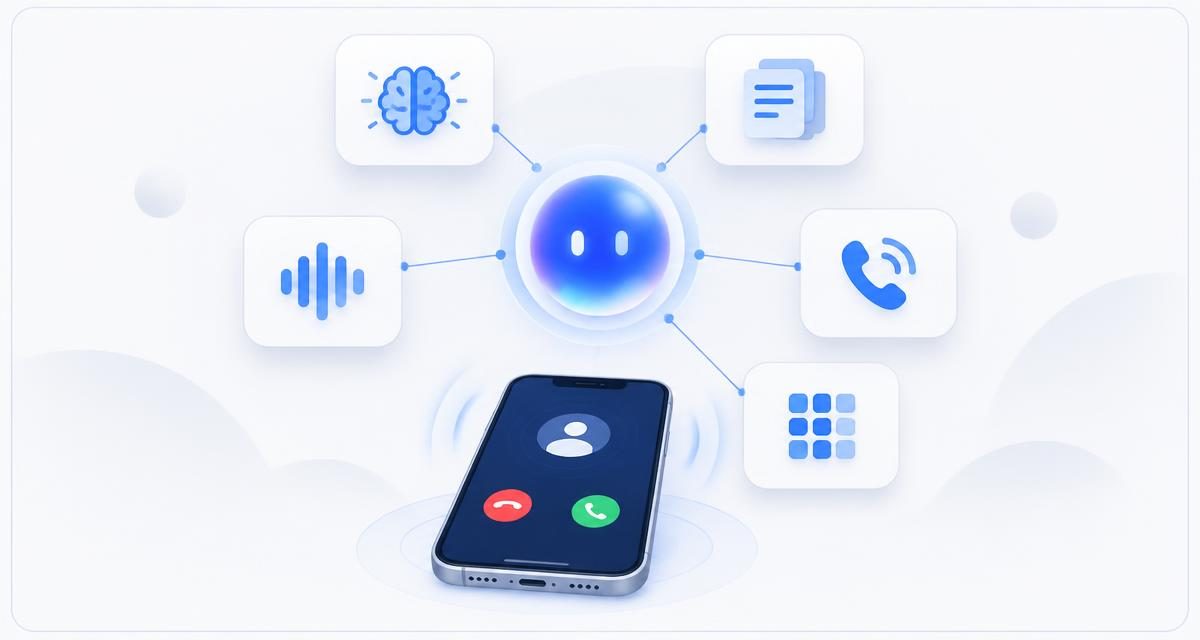
An AI agent changes that. Instead of you bringing the information to the model, the model goes to where the information is, does the work there, and returns a result. This guide covers 10 agents you can build today without code, using tools you already have or can start in minutes.
In short: An AI agent connects to your tools, such as email, calendar, files, and browser, and completes multi-step tasks on its own. This guide walks through 10 agents you can build with tools like ChatGPT Work, Claude Cowork, Grok Bot, and Manus. Start with one read-only agent, and add write permissions only after it works the way you expect.
Key takeaways
- An agent differs from a chat in three ways: access to your tools, the ability to take action, and the ability to run a sequence of steps without you.
- Start with one clearly defined task and read-only permissions.
- Four types of action always require the agent to stop and ask for your approval: sending, buying, booking, and deleting.
- In ChatGPT Work, connectors are set up under Settings, then Connectors. Business accounts can also schedule runs and share agents with a team.
- A Skill is an instruction file that loads automatically when it is relevant, so you don't have to paste the same long prompt every time.
- Grok Bot bots all share one computer, so the separation between them is logical, not a security boundary.
What makes an agent different from a chat?
An agent differs from a chat in three ways. It has access to your tools, it can take action, and it can run a chain of steps on its own, stopping only when it needs you.
- Access: The agent connects to your tools, including email, calendar, files, browser, and apps.
- Action: It does not only read. It also sorts, sends, fills in forms, downloads, and compares.
- Sequence: It runs a chain of steps by itself and stops when it needs your input.
The agents in this guide need no code. You can build them with tools you already have or can start within minutes. For each agent you will get: what it does, what to build it on, how to set it up, a full prompt to copy, in-depth use cases, and what tends to go wrong.
What tools do you need to build these agents?
You need one or two of six tools covered in this guide: ChatGPT Work, ChatGPT Skills, Claude Cowork, Claude Skills, Grok Bot, and Manus. Each one fits a different kind of task.
ChatGPT Work
ChatGPT Work is the work profile in ChatGPT. It connects ChatGPT to your apps through Connectors, including Gmail, Google Calendar, Google Drive, Slack, Outlook, and more. It can also build an agent with fixed instructions, fixed tools, memory, and a schedule for running.
Use it when: The task depends on your own information, such as your email, calendar, or files. Examples include meeting prep, inbox cleanup, and weekly summaries.
What you need: A paid plan. Connectors are set up under Settings, then Connectors. On business accounts you can also schedule runs and share agents with your team.
ChatGPT Skills
A Skill is an instruction file that teaches the agent how to do a certain kind of work. For example, it might describe how you want an email summarized or the structure of your weekly report. Instead of writing the same long prompt each time, you write it once as a Skill, and the agent loads it when it is relevant.
Use it when: You have a recurring task and want it to come out the same way every time.
Claude Cowork
Claude Cowork is the desktop app for Claude, built for knowledge work. Claude works directly on your computer. It reads and writes files, opens a browser, uses Excel and PowerPoint, and can run a long process of several dozen steps. You can give it a whole folder and say, "Go through everything and come back to me with a summary."
Use it when: The task involves local files, a browser, or both. Examples include checking a website, analyzing invoices, and mapping out tasks.
Claude Skills
Claude Skills work on the same idea as ChatGPT Skills, on the Claude side. A Skill is a folder with a SKILL.md file that describes how to do a task. Sometimes it also includes scripts or templates. Claude loads the Skill automatically when the task matches. Skills work in Claude Cowork, in Claude Code, and in the regular app.
Use it when: You want consistent results for a recurring task, and you want to share that knowledge across several agents or people.
Grok Bot
Grok Bot is xAI's agent product. Each bot gets its own cloud computer with a browser, files, and a terminal. It connects to your software using your own permissions, and it keeps working when your computer is off. Its unique advantage is native access to search on X (formerly Twitter) and the web, which makes it especially strong for competitor research and tracking what people are saying in real time.
What to know: Right now it is in limited beta. There is no standalone subscription. Access comes through paid Cursor or SuperGrok / X Premium+ subscriptions. All the bots in an account share one computer, so the separation between bots is logical, not a security boundary. Keep that in mind before you give it passwords.
Manus
Manus is a general autonomous agent that runs in the cloud with its own browser. It also offers Browser Operator, a Chrome extension that lets it work inside your own browser, using accounts you are already logged into. It has a store of plugins and connectors to outside services, which makes it strong for tasks that require moving between many sites.
Use it when: You need a broad web search, form filling, comparisons across sites, or collecting data into a table.
Which tool should you choose?
Choose the tool based on where your information lives. Use the table below as a quick guide. You don't need all of them. Most people do well with one or two tools.
| The task is based on... | Use this tool |
|---|---|
| My email, calendar, or files in Google | ChatGPT Work |
| Files on my computer plus a browser | Claude Cowork |
| A broad web search and form filling | Manus |
| What's happening right now on X and in the news | Grok Bot |
| Consistent output for a recurring task | A Skill (Claude or ChatGPT) |
Choose based on where your information is, not on what sounds the most advanced.
What are the three rules before you build your first agent?
The three rules are: give the agent one well-defined task, use minimal permissions, and require approval before any irreversible action. Following them prevents most of the common problems people run into.
Rule 1: One task, clearly defined
Don't say "manage my email." Instead say: "Go through the unread emails from the last 7 days, sort them into three groups, and show me a list." A good agent is one you can describe in one sentence and check by eye to see whether it succeeded.
Rule 2: Minimal permissions
Every agent has two lists: what it is allowed to do and what it is not allowed to do. An agent that sorts email has no reason to be able to send email. An agent that compares flights has no reason to be able to pay. Start with read-only access, and add write access only after you have seen it work the way it should.
Rule 3: Approval before any irreversible action
There are four actions an agent should always stop and ask about first:
- Sending (email, message, form)
- Buying (any payment)
- Booking (flight, hotel, meeting)
- Deleting (email, file, record)
Add this sentence to every prompt in this guide:
"Before any send, purchase, booking, or deletion, stop, show me exactly what you are about to do, and wait for my explicit approval."
This is
Questions people ask
What is the difference between an AI chat and an AI agent?
A chat waits for a question and returns an answer that you copy wherever it needs to go. An AI agent connects to your tools, such as email, calendar, files, and browser, and can take actions and run a chain of steps on its own. It stops only when it needs you.
Which tool should a beginner start with?
If your information lives in Google (Gmail, Calendar, Drive), start with ChatGPT Work. If you work a lot with files on your computer and also want a browser, Claude Cowork is the better fit. Both are enough for agents 01, 02, 04, 05, 07, and 09.
How long does it take to build a first agent?
A read-only agent, such as one that sorts email or prepares you for meetings, takes about 10 to 15 minutes to set up. Turning it into a Skill and scheduling it adds a few more minutes. Start small and expand only after the agent works.
Is it safe to give an agent access to my email?
It can be, at about the same level as any other app you connect to Gmail, as long as you use the official connection (OAuth), start with read-only permissions, and leave out send ability until the agent behaves correctly. Expand permissions only after you have seen it work.
What should I do when an agent makes a mistake?
First, check whether the prompt was clear. In most cases the mistake comes from an instruction that was missing, so add the failed case to the prompt as a rule. If the action was irreversible, that is a sign you need an approval gate before it runs.